
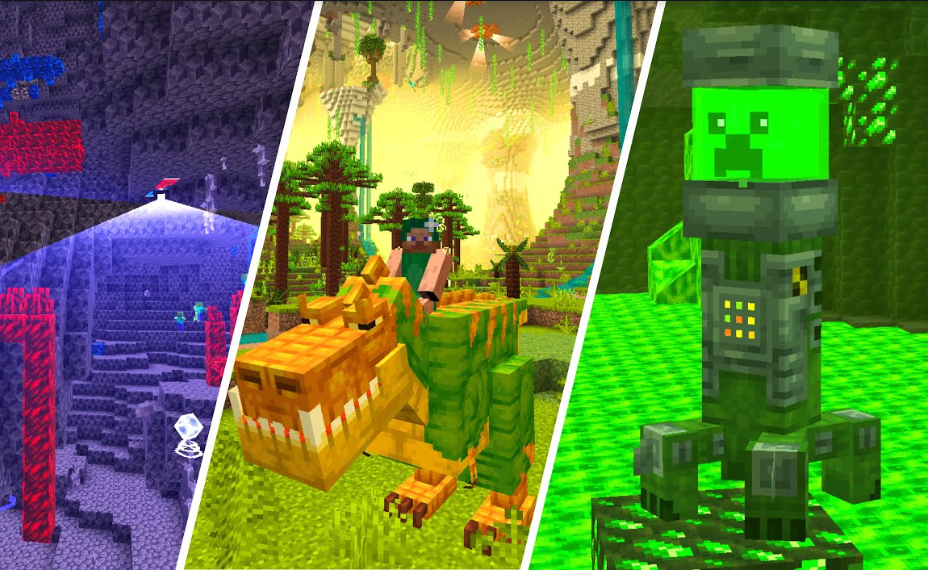
Minecraft has grown far beyond its original sandbox roots, evolving into a platform where players can customize gameplay through mods and plugins. For server administrators looking to combine these two worlds, SpongeForge offers a powerful solution. It allows servers to run Forge mods alongside Sponge plugins, enabling complex features without requiring players to install additional software.
Understanding which Minecraft versions SpongeForge currently supports is crucial for creating stable, high-performance servers that deliver a seamless experience to every player. This guide explores version compatibility, installation steps, and best practices for running a SpongeForge server effectively.
The Hybrid Modding Solution
SpongeForge is the bridge between Minecraft Forge and the Sponge API. It allows servers to run Forge mods and Sponge plugins simultaneously, enabling complex server customization. Unlike traditional mods, Sponge plugins operate server-side, meaning players do not need to install anything. This approach ensures that server administrators can create customized gameplay mechanics while keeping client requirements minimal.
SpongeForge has grown thanks to an active developer community. Regular updates maintain compatibility with key Minecraft versions and Forge releases. Its hybrid functionality makes it one of the most versatile tools in Minecraft server management, giving administrators the freedom to combine mods and plugins effectively.
Why Version Compatibility Is Crucial
Every version of SpongeForge is tied to a specific Minecraft and Forge release. Choosing an unsupported version can cause server crashes, corrupted worlds, and plugin failures. Understanding what Minecraft versions SpongeForge currently supports is essential before installing any mods or plugins.
Version compatibility ensures server stability. While newer Minecraft releases bring updated features, older versions often provide more reliable mod and plugin support. Server administrators must weigh the trade-offs between new game mechanics and a stable, well-supported mod ecosystem.
Minecraft 1.12.2 Support
Minecraft 1.12.2 is the most widely supported version in SpongeForge, offering stability and a vast library of mods and plugins. Here’s a step-by-step look at why it’s ideal for servers:
Verify Mod and Plugin Availability
Before choosing 1.12.2, ensure the mods and plugins you want are compatible. This version has the largest ecosystem, making it easier to find popular mods and active plugins.
Install the Correct Forge Version
1.12.2 requires a specific Forge release. Download and install the matching Forge version to avoid conflicts. SpongeForge will only function correctly with the compatible Forge build.
Add SpongeForge to the Server
Place the SpongeForge .jar file into the server’s mods folder. This step integrates Sponge plugins with Forge mods, enabling hybrid server functionality.
Configure Plugins
Move compatible plugins into the plugins folder. Ensure each plugin supports 1.12.2 to prevent errors or server crashes.
Test the Server
Before launching publicly, run the server in a test environment. Verify that all mods and plugins work together without conflicts, and check for performance issues.
Optimize Performance
Allocate sufficient RAM and monitor server logs for errors. Using lightweight plugins and well-optimized mods ensures smooth gameplay for players.
Maintain Updates
Regularly update plugins and mods for 1.12.2 to maintain security, stability, and compatibility. Back up the server frequently to prevent data loss.
Many large multiplayer servers still rely on 1.12.2 because it balances modern features with proven stability. For administrators seeking longevity and a wide mod selection, this version is unmatched.
Minecraft 1.10.2 Support
SpongeForge also supports Minecraft 1.10.2, catering to legacy mod enthusiasts. Although it is older, 1.10.2 remains valuable for servers that rely on mods no longer updated for newer versions.
- Legacy Mod Compatibility: Many classic mods are only available for 1.10.2.
- Lower System Requirements: This version is less resource-intensive, making it ideal for smaller servers or older hardware.
- Simpler Mechanics: Some server administrators prefer the simplicity and predictability of older gameplay mechanics.
While plugin updates for 1.10.2 are less frequent, it remains a solid choice for specialized server setups, particularly those focused on nostalgia or specific mod packs.
Minecraft 1.8.9 Support
The 1.8.9 version of Minecraft is supported in SpongeForge for niche communities. Although the mod and plugin library is smaller, it offers unique advantages.
- High Performance: Servers running 1.8.9 generally perform well, even on low-spec hardware.
- Classic Gameplay: Many players enjoy the older mechanics and combat system of 1.8.9.
- Niche Community: Certain modded servers cater specifically to 1.8.9 for PvP or classic gameplay experiences.
This version is ideal for servers where performance and efficiency are more important than new features or a wide mod selection.
How SpongeForge Handles Version Updates
SpongeForge does not automatically support all new Minecraft releases. The development team carefully evaluates each Minecraft update before adding support. Newer versions often require substantial changes to both the Sponge API and Forge compatibility.
Community contributions play a key role in extending version support. Open-source developers often patch plugins or mods for newer Minecraft releases, gradually expanding the number of supported versions.
Server administrators should track SpongeForge releases and avoid rushing into unsupported versions. Choosing a stable, tested version is critical to preventing downtime and ensuring plugin compatibility.
Installing SpongeForge Correctly
Installing SpongeForge is straightforward but requires attention to detail. Each SpongeForge release matches specific Minecraft and Forge versions, so verifying compatibility is the first step.
- Forge Version Check: Confirm that your Forge installation aligns with the SpongeForge release.
- SpongeForge Jar Placement: Place the
.jarfile in the server’smodsfolder. - Plugin Installation: Place compatible Sponge plugins in the
pluginsfolder. Check plugin documentation for version requirements.
Proper installation prevents server crashes and ensures that all mods and plugins work as intended. Mistakes in version alignment are one of the most common causes of instability in modded servers.
Choosing the Best Version for Your Server
Selecting a Minecraft version for SpongeForge depends on server goals, mod availability, and player preferences.
- For Large Modded Servers: 1.12.2 is ideal due to its extensive mod and plugin support.
- For Legacy Mods: 1.10.2 offers access to classic mods that newer versions do not support.
- For Performance-Focused Servers: 1.8.9 provides efficiency on low-resource systems.
Balancing features with stability is key. Administrators should evaluate their mod selection, server size, and hardware before finalizing a version.
Managing Mods and Plugins Efficiently
SpongeForge servers often run dozens of mods and plugins simultaneously. Proper management is essential to maintain performance and stability.
- Test Individual Mods: Ensure each mod works correctly before adding multiple mods to the server.
- Avoid Redundant Plugins: Plugins with overlapping features can cause conflicts or errors.
- Regular Updates: Keep mods and plugins up to date to maintain security and compatibility.
By carefully managing mods and plugins, server administrators can reduce crashes, lag, and compatibility issues.
Performance Optimization Strategies
Performance is a key concern for modded Minecraft servers. SpongeForge servers require careful optimization to handle heavy mod loads.
- Allocate Adequate RAM: Ensure your server has enough memory for the number of mods and players.
- Monitor Server Logs: Logs help detect errors or bottlenecks early.
- Use Lightweight Mods: Avoid unnecessary resource-heavy mods that slow down the server.
Optimizing server performance improves player experience and reduces the risk of crashes.
Common Issues and Solutions
Even experienced administrators encounter challenges with SpongeForge servers. Understanding common problems helps prevent downtime.
- Version Conflicts: Running incompatible Forge and SpongeForge versions can crash servers. Always verify version compatibility.
- Plugin Errors: Some plugins may fail to load. Test each plugin on a separate server before deployment.
- Mod Compatibility: Certain mods may not work together. Research compatibility and maintain backups.
Proactive troubleshooting ensures a stable and reliable server environment.
The Future of SpongeForge
SpongeForge continues to evolve alongside Minecraft. While 1.12.2 remains the most widely used version, the community is actively working to support newer Minecraft releases.
Future updates depend on Forge releases, plugin availability, and community contributions. Server administrators should follow SpongeForge announcements and consider long-term support when selecting a version.
Conclusion
Knowing what Minecraft versions does SpongeForge currently support is essential for any modded server administrator. Versions 1.12.2, 1.10.2, and 1.8.9 offer a balance between mod support, stability, and performance. Correct installation, careful mod management, and optimization are crucial for smooth server operation. With proper planning, SpongeForge enables administrators to create unique, stable, and engaging Minecraft experiences.